sap business one add ons How to Install AddOn on SAP Business One
at 8:19 PM
sap business one add ons How to Install AddOn on SAP Business One
If you want to install an Add-on that was developed by a software service provider (SSP), there are several requirements that must be completed:
- You must have Superuser authorization on SAP Business One
- You must have an Add-on registration data (.ard) file
- You must have the setup.exe Add-on file
Follow the steps below:
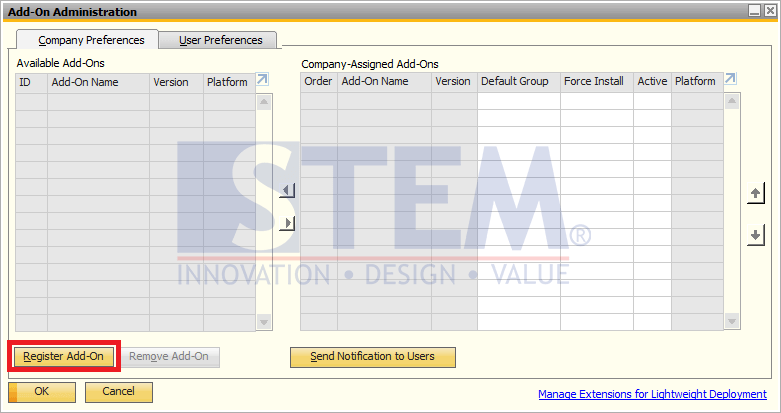
- In the SAP Business One main menu, select Administration → Add-Ons → Add-On Administration. Then click Register Add-On.
SAP Business One Tips – How to Install Add-On in SAP Business One - Then a new Add-On Registration window will appear as below.
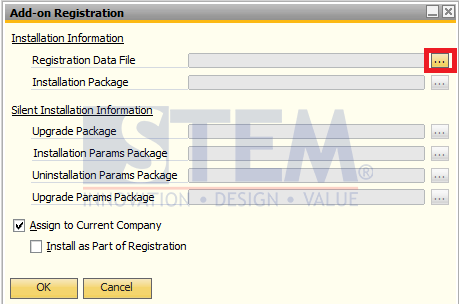
SAP Business One Tips – How to Install Add-On in SAP Business One - Then in the Data Regisstration Data File ’click the button
- Select the Add-On .ard file. The one in that directory also contains the .exe Add-On file.
- The file will automatically fill its directory according to the location of the Add-On .ard file.
- Click the OK button
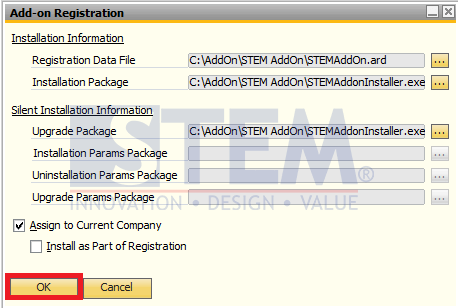
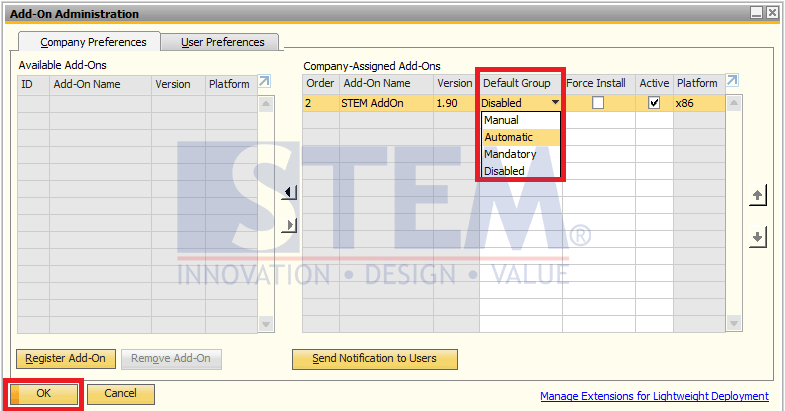
SAP Business One Tips – How to Install Add-On in SAP Business One- Then it will return to the Add-On Administration screen, with the Company-Assigned Add-Ons matrix already filled with the Add-On that we selected.
- Select the Default Group, previously the default is disable. We can change to Automatic, so that at the SAP Business One Login Automatic Add-On will light up. Or we can set it to be Mandatory. The difference with Automatic is if the Mandatory Add-On must always be turned on when logging into SAP Business One. We can't turn it off manually.
- Click OK button..
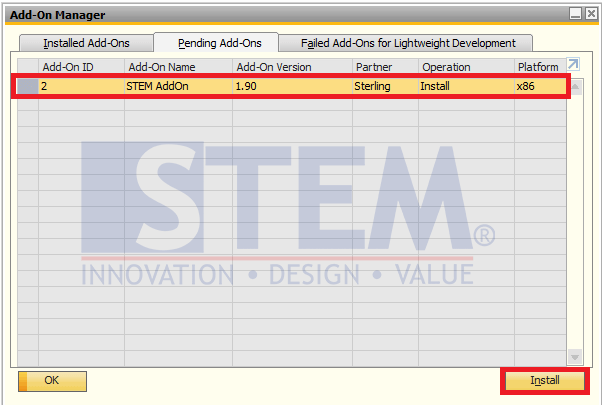
SAP Business One Tips – How to Install Add-On in SAP Business One - Then open the Add-On Manager menu, which is in Administration → Add-Ons → Add-On Manager.
- Click the Pending Add-Ons Tab.
- Click the Add-On line that we will install.
- Click the Install button.
SAP Business One Tips – How to Install Add-On in SAP Business One- Then a notification message will appear as below.

SAP Business One Tips – How to Install Add-On in SAP Business One - Then wait for the Add-On notification to be successfully installed like this.

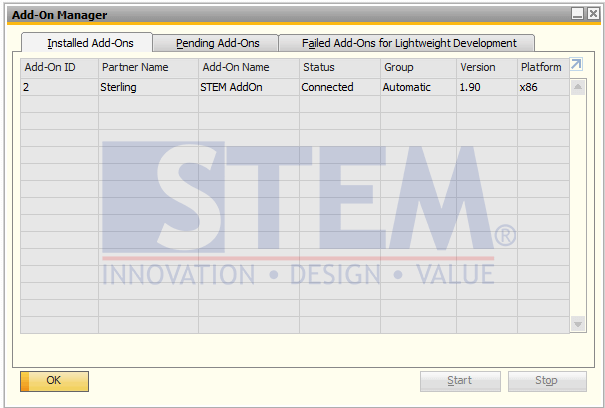
SAP Business One Tips – How to Install Add-On in SAP Business One - Because the previous Add-On has been set Automatic. The Add-On will automatically run too. You can see the Connected Add-On Status that shows that the Add-On is installed and running properly