Showing posts with label SAP PP. Show all posts
FG batch and SFG sample batch

FG batch and SFG sample batch

Is the BATCH FG code the same as the BATCH SFG code ??

At SAP Indonesia, we will talk about cases that occur in SO (Sales Order) Exports.Batch Finished Goods / FG and Semi Finished Goods / SFG batches for samples are sometimes needed to know the batch code, whether batch code FG = SFG batch code.
before entering into the discussion material, I will try to explain the matter before that, so that the SAP terminology can be understood the purpose and purpose of the problem.
1. BATCH2. What is FG / SFG3. Slock
BATCH is grouping / groups of the results of production or we know is batch production.
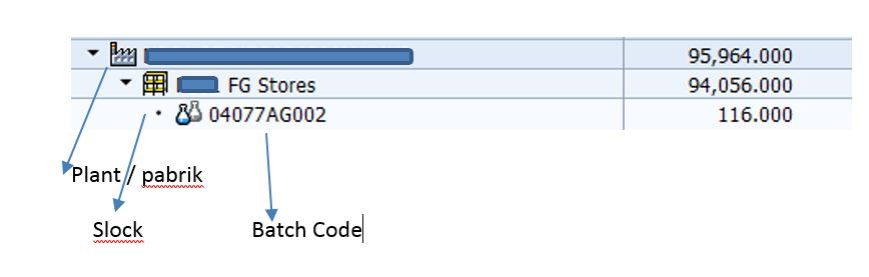
For each production that produces Finished goods or semi Finished good, it is stored in a production slock / rack according to the Batch Production order.
Usually the serial serial number consists of day-date-brand production-serial number code (ex. 04077AG002)
In order to understand the explanation above, you see the picture below:
FG and SFG are Finished goods (FG) are finished goods from the production process, SFG is a semi-processed material which is likely to be further processed to join with other components to become the final material of FG.
How to understand the two referred to, try to see the hirakki structure of the material below:
4001001: Pens
its components consist of:
  1. SFG (liquid ink) that has been processed first
  2. Row mat CAP Pens
  3. Plastic mat
  4. Packaging Box
I think I understand, we can continue the material about the batch, that the batch is generated automatically by the SAP system.
Is batch processeing manipulated by us / manually is very possible but the risk is that if it is not careful it will cause batch overlap (duplication), because in the field it is rather difficult to make the manual batch.
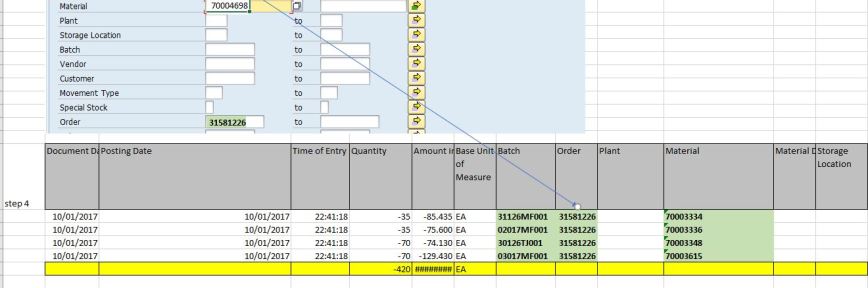
Pay attention to the direction of the arrow, showing the working pattern of how to look for parent batches and chiled batches.
this can be traced from the BOM (bill of material) of finished goods
And the next search combination MB51 and COOISPI tcode
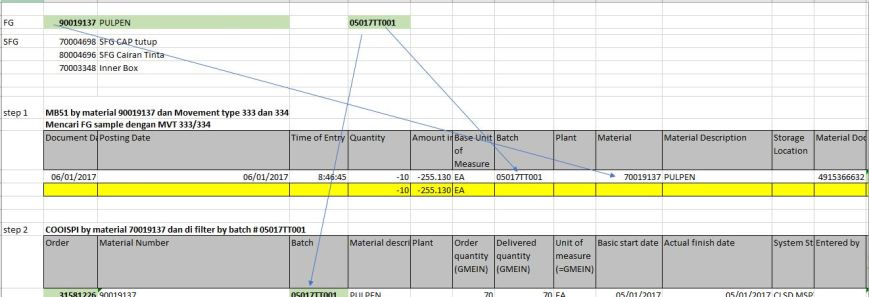
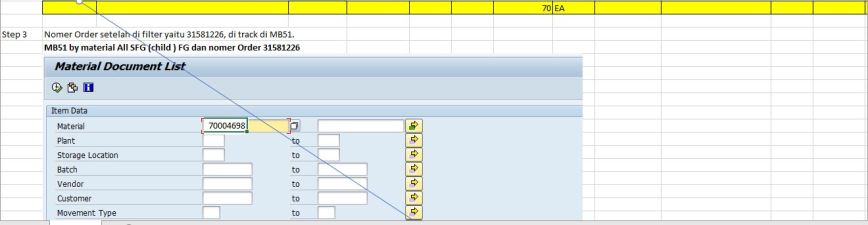
So the conclusion of SAP Indonesia is that BATCH Finished Goods are equivalent to BATCH Semi Finished Goods.Because it is the policy of the Export marketing team, that the batch must be exactly the same, why ???
BECAUSE:Sales Order (SO) Export is: MTO (Make to Order) strategyit means that the stock of RM / PM / SFG and FG will be prepared and created whenever there is a request from SO (sales order)
and the process is NOT run by itself / manually but is run by automatic RUN MRP.
Why is that, because only MRP will calculate the availability of stock row mat and SFG that must be provided to achieve the desired finished good quantity.
In a separate page, we will discuss how SO Export is suggested to Production using MRP.
BILL OF MATERIAL (BOMB) IN SAP PP: CREATE, CHANGE, DISPLAY

BILL OF MATERIAL (BOMB) IN SAP PP: CREATE, CHANGE, DISPLAY

What is the Bill of Material (BOM) and its role?

A bill of material is a complete and formally structured list of components that make up a product or assembly. This list consists of material numbers for each component, along with quantities and units of measure.
  • BOM can be single and multi-level. For example, finished materials will contain intermediate materials as components which in turn will contain raw materials as components at the next level.
  • There may be different alternative BOMs for a product depending on different lot sizes, validity dates, and production methods
  • BOM is used in production planning for semi-finished planning and purchasing for raw materials.
  • BOM is also used in the calculation of standard costs for finished products by rolling costs from raw to semi-finish and then to finished products
  • BOM materials can be made for materials in PP modules and BOM Equipment is used in the Plant Maintenance / PM module
In this tutorial - will be learned about:
  1. How to create BOM
  2. How to change BOM
  3. How to see BOM

HOW TO CREATE BOM

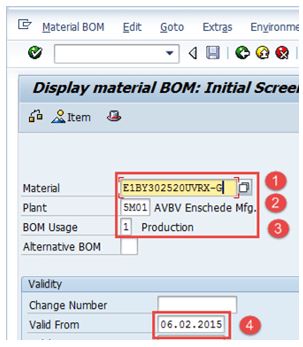
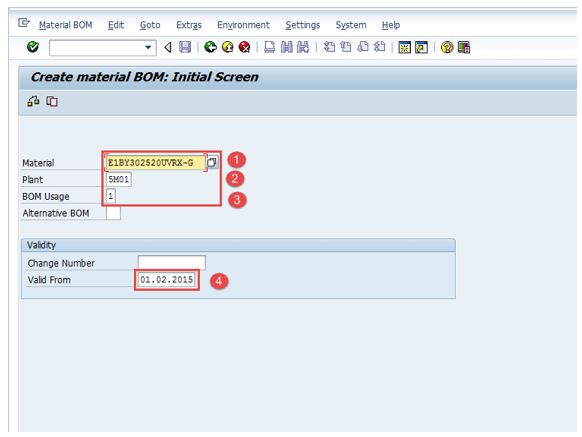
Step 1) From the SAP screen open transaction CS01
  • Enter the parent material for the BOM to be created.
  • Enter the Plant Code.
  • Enter BOM usage = "1" that is used for Create Production BOM
  • Enter a valid date from which means that the BOM will be validated from that date.
After filling all the fields, click or press the Enter key to go to the next screen.
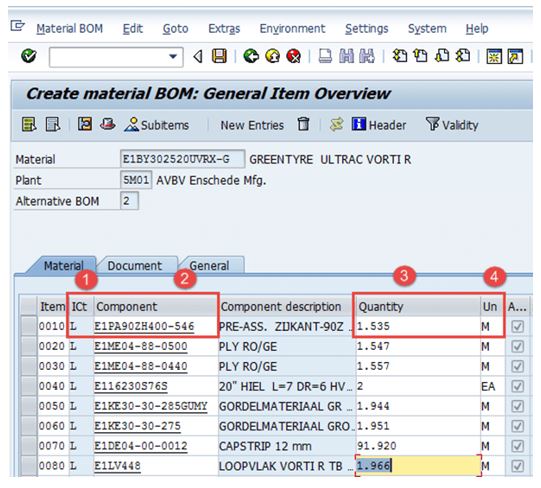
Step 2) On the next screen.
  • Enter an Item Category with "L" that is used for stock items and can be the default.
  • Enter the Component material code in the Component Field.
  • Enter the Component quantity shown below.
  • Some information such as description and unit measure of the component will be taken out by the system automatically after clicking or pressing Enter on the keyboard button.
Note:To look further down through BOM for one of these components, double click on the inside column of the Assembly column. If the box is not checked, then the component has no further BOM
Step 3) On this screen,
  •   Click on the icon to see the BOM header, the system will show the BOM header screen at a later stage:
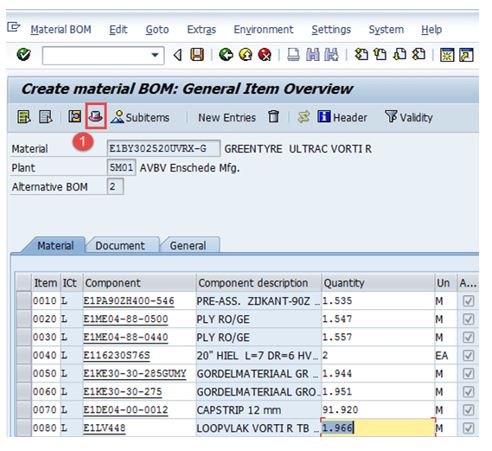
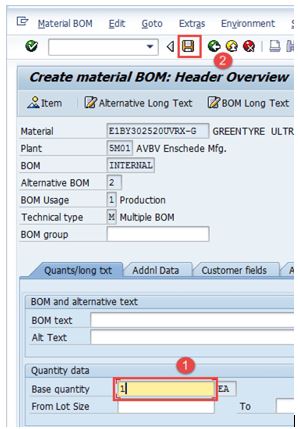
Step 4) In the BOM header view,
  • Fill in the base quantity in the parent material. If this is 1 EA (each), then the component quantity will describe how much is needed to produce 1 item
  • Click to save the new BOM after checking, the system will show a message in the lower left corner.  
Now in the next stage we will see, how to change the BOM?

How to change BOM (CS02)


We will change the BOM if there is a change in the list of components or the quantity of components used to produce FG products.
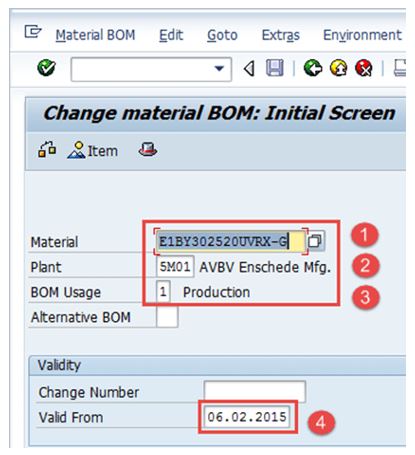
Step 1) From the SAP screen open transaction CS02
  • Enter BOM parent material to be changed.
  • Enter the Plant Code.
  • Enter BOM usage = "1" which is used to change the BOM Production.
  • Enter a validation date from which means that the BOM will be valid from that date.
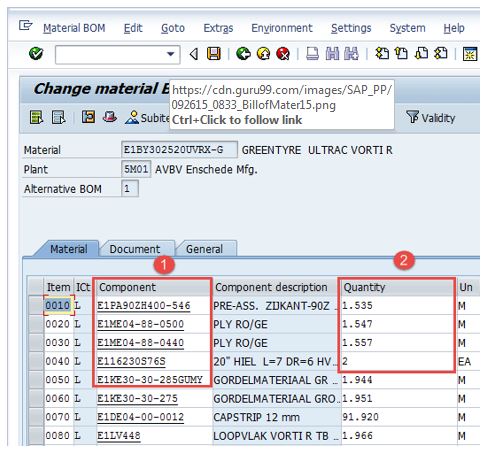
Step 2) After filling all the fields, click to go to the next screen.  
  • Change the component code or quantity.
  • After completing all modifications, click to save BOM  . The system will show a message as changed in the lower left corner. 

 How to see BOM

Step 1) From the SAP screen open transaction CS03
  • Enter the parent material for the BOM to be displayed.
  • Enter the Plant Code.
  • Enter BOM usage = "1" which is used to change the BOM Production.
  • Enter a date validation from which means that the BOM will be validated from that date.
Click    to go to the next screen
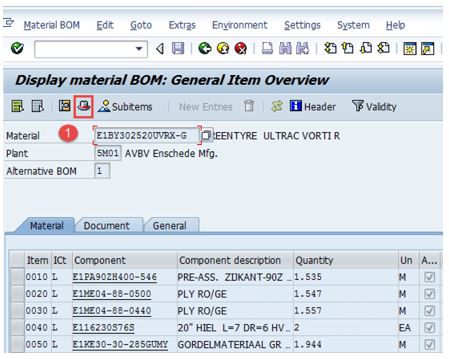
Step 2) On this screen, list the components with the quantity to be displayed.
  • Click  the icon to see the BOM header.
In the next step, you will see a BOM header.
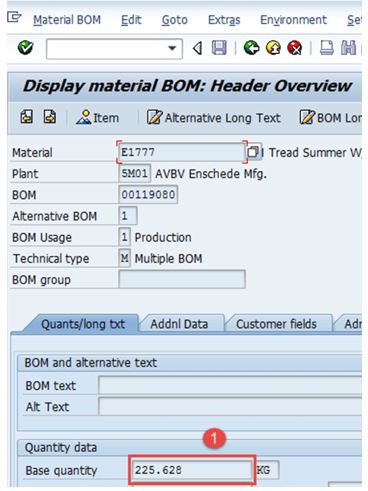
Step 3) At this stage, the BOM header will be displayed.
  • Display base quantity of product.
Troubleshooting :
  • There may be cases where component materials do not exist. For this, you need to make master material for component materials before making BOM.
  • Some users try to make BOM again for the same product,
  • the system gives a warning message about "Alternative BOM2 is being made" and they tend to ignore the warning message and move forward and therefore end up creating a similar alternative BOM 2 for the same product.
  • This does not need to make duplicate data
WORK CENTER IN SAP PP: CREATE, CHANGE, DISPLAY (CR01, CR02, CR03)

WORK CENTER IN SAP PP: CREATE, CHANGE, DISPLAY (CR01, CR02, CR03)

WORK CENTER IN SAP PP: CREATE, CHANGE, DISPLAY (CR01, CR02, CR03)


Work Centers are organizational units where manufacturing activities are carried out.
In other words, the Work Center is the master data that represents the real machine, Production Line, Work Center assembly, etc. Manufacturing activities or Operations carried out at the Work Center.
The Work Center is used in the list of tasks (routing) operations and copied to the production order or process order for planning and implementing shoop floors.
Data Work Centers are used for:
    • Scheduling When a Production Order is created, the duration of an operation can be calculated based on the operating time in the routing and the formula will be entered into the Work Center..
    • Costing The cost of an operation can be calculated in the production order based on the formula entered into the Work Center. Work centers are always associated with Cost Centers
    • Capacity Planning The capacities and formulas available to calculate capacity requirements are stored in the Work Center
  • Work Centers are used in data routing operations.
  • Work Centers are created for manufacturing plants and are identified by code
In this tutorial we will study:
  1. How to create a Work Center
  2. How to change the Work Center
  3. How to see the Work Center

HOW TO CREATE WORK CENTER

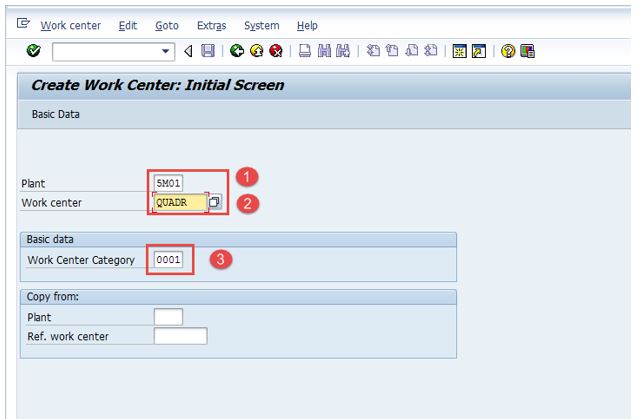
Step 1) From the SAP screen open transaction CR01
  • Enter the manufacturing Plant code where the Work Center is created
  • Enter the Work Center code.
  • Enter the Work Center category as "0001" which means the Work Center will be categorized as a machine.
After filling all the fields, click   or press Enter to go to the next screen.
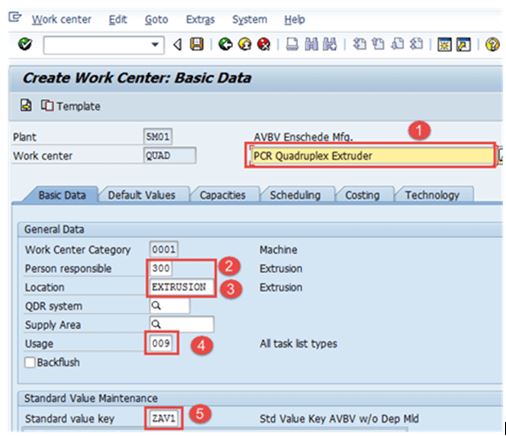
Step 2)  On this screen, the Basic Work Center data will be entered as below.
  • Enter the Work Center description.
  • Enter the code of the person responsible for the Work Center.
  • Enter the physical location where the Work Center is at the factory.
  • Enter Usage as "009" which means the Work Center applies to all types of task lists such as production routes, maintenance of task lists, etc.
  • Enter a standard key value that contains various types of activities used for standard cost calculations.
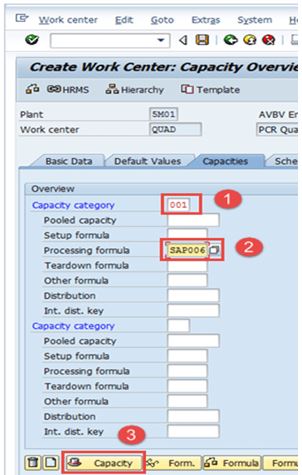
Step 3) On this screen under "Capacities Tab."
  • Enter the Capacity category as "001" which represents the machine category.
  • Enter the formula process as "SAP006" - this is used to calculate capacity availability from the Work Center.
    SAP006 = (Operation quantity * machine time) / base quantity
  • After filling into the capacity category and processing the formula, click on the button:  
Then another screen will beopened:
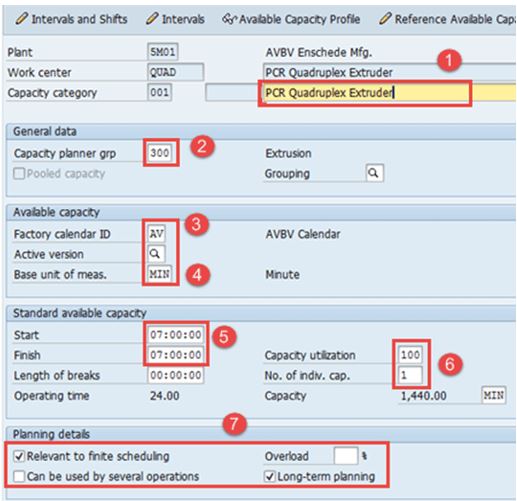
Step 4) On this screen under the Capacities Tab, capacity data will be entered.
  • Enter Capacity description.
  • Enter details about the "Input capacity planner group", which is responsible for machine capacity.
  • Enter the factory calendar ID, which has a list of holidays for your plant. then on holidays, the capacity for the Work Center will be left blank.
  • Enter the base unit of measure as "MIN" which means the work center's available capacity will be measured in i.e time. min
  • Enter the time period (start and finish time) for which the Work Center will be available for operation.
  • Enter the capacity utilization percentage% (how much time is used from the standard working time available) from the Work Center to consider damage and preventive maintenance of the machine. Enter the amount of capacity which means a number of similar Work Centers.
  • Check "relevant for limited scheduling and" long-term planning "which shows if there is a capacity limit, the operation is moved to a certain date where it can be processed without capacity limits.
After filling all fields, click   to return to the Overview Work Center Capacity
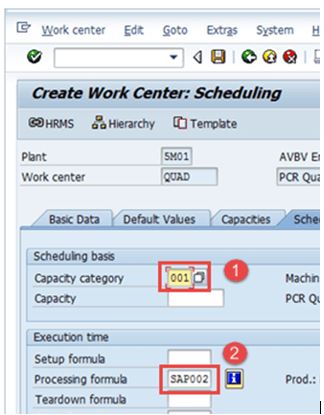
Then click the "Scheduling" tab from the menu, the system will show on the next screen:
Step 5) On the Scheduling Tab,
  1. Enter the capacity category with "001" which shows the machine category and hence machine time will be the basis for calculating schedule time in production orders.
  2. Input processing formula with "SAP002" which is used to calculate scheduling time.
SAP002 = (Operation quantity* machine time)/ base quantity/no. of splits.
After filling all the fields, click the "Costing" tab
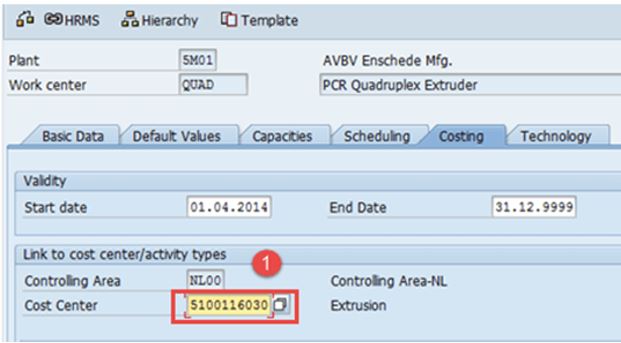
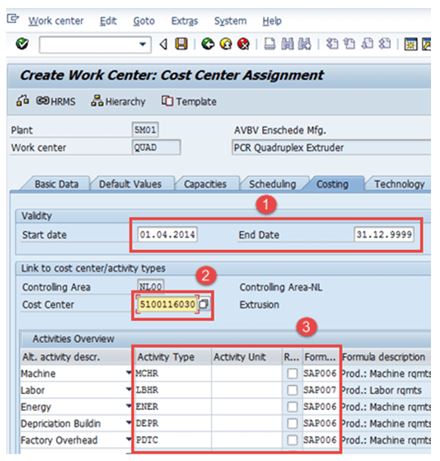
Step 6) On the Costing Tab
  1. Enter a Start and Finish date that shows the validity date of the cost center.
  2. Input center costs on operational costs to be calculated..
  3. Input all activity types and formulas, which will be used to calculate activity costs.
Click the button   to save the new Work Center. The system will give a message in the lower left corner.untuk save Work Cente 

HOW TO CHANGE THE WORK CENTER

We need a change in the work center if the cost center assigned to the work center has been changed by the finance team. If the work center time available for production or% of its utilization has been changed, then we also need to make changes in the work center.
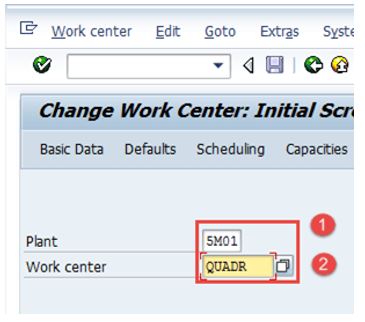
Step 1) From the SAP screen, open the CR02 transaction.
  1. Enter Plant Code.
  2. Enter the Work Center code to be changed.
After filling all the fields, click to see the overview screen in the work center. You can also go directly to the tab that is used
Step 2)
  1. Change the Cost Center or make any modifications, such as when changes are available or% usage in one of the tabs.
After completing all modifications, click to Save Work Center. The system will display a message:

HOW TO SEE WORK CENTER

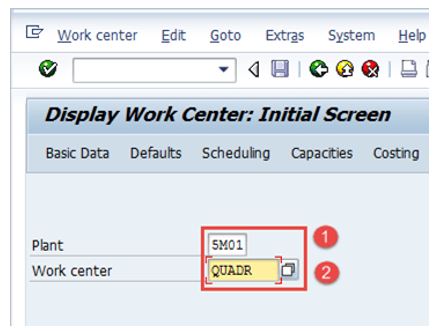
Step 1) From the SAP Easy Access screen open the CR03 transaction
  1. Enter Plant Code.
  2. Enter the Work Center code to be displayed
After filling all the fields, press enter from the keyboard to go to the overview screen of the work center.
You can also go directly to the tab provided for use.
Troubleshooting
There may be cases where the Cost Center does not exist. For this, you need to create a cost center and maintain an activity type - cost center relationship
If you go to the Technology tab you will get stuck / stuck in the selection of engine type, if so click to leave the tab
The person in charge, the capacity planner group will be configured in the order process by creating a work center
So, continue to another master data ...