Showing posts with label Item Master Data. Show all posts
Change the Item Group to an Item that already has a transaction

Change the Item Group to an Item that already has a transaction

Sometimes when inputting a new master item we might make mistakes such as incorrect setting of Group items. If there are no transactions, we can immediately replace them with the correct item group, but what if there are already many transactions on that item?
Here are the things to consider and do if you want to replace the item group on items that already have a transaction
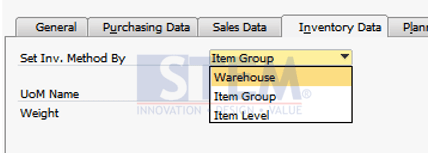
  1. Open the Item master data window and find the item whose item group you want to change, then on the Inventory data tab, see the Set Inv column. Method by, if the contents are not an item group then it can be changed immediately because there is no effect on the journal (For Reports that use the Item group there might be changes in value)
  2. If the Set Inv column. Method by is set to item group then Check first for the Stock Item per warehouse
  3. After getting Stock Item positions in each warehouse, make sure there are no current / pending transactions for these items during the steps below
  4. The next step is to spend the stock items through the Inventory menu -> Inventory Transactions -> Good Issue. Input data items based on the last stock position per warehouse (per Bin if using Bin)
  5. After All Stock is made Zero through Good Issue, it returns to the Item Master data window and then changes the item group
  6. After changing the Group items, open the Inventory menu -> Inventory Transactions -> Good Receipt. Return All Stock items as before through the Good receipt menu.
After completing the steps above can be checked for transactions that occur after inputting the Good Receipt posting will use the account set in the new item group, but for the previous transaction will remain in the old item group account but the balance is has been spent on Good Receipt and transferred to the new item group account at the time of Good Receipt
List of Object Types in SAP BUSINESS ONE

List of Object Types in SAP BUSINESS ONE

Sometimes, you as a user need to make a simple query to view and analyze certain data, you can use the "Query Generator" feature, or make a validation in SP Transaction Notification, add another SP Post Notification to your database, with a custom queries that created directly in the SQL Management Studio / HANA studio application. But to do that you cannot remember which table names and object types you want to use. This is reasonable considering that there are so many tables in SAP Business One.
The following is a complete list of all Table & Object Type Names in SAP B1 with its Primary Key:
TableTable descriptionPrimary KeyObject Type
OACTG/L AccountsAcctCode1
OCRDBusiness PartnerCardCode2
ODSCBank CodesAbsEntry3
OITMItemsItemCode4
OVTGTax DefinitionCode5
OPLNPrice ListsListNum6
OSPPSpecial PricesCardCode, ItemCode7
OITGItem PropertiesItmsTypCod8
ORTMRate DifferencesLineNum, IsSysCurr9
OCRGCard GroupsGroupCode10
OCPRContact PersonsCntctCode11
OUSRUsersUSERID12
OINVA/R InvoiceDocEntry13
ORINA/R Credit MemoDocEntry14
ODLNDeliveryDocEntry15
ORDNReturnsDocEntry16
ORDRSales OrderDocEntry17
OPCHA/P InvoiceDocEntry18
ORPCA/P Credit MemoDocEntry19
OPDNGoods Receipt PODocEntry20
ORPDGoods ReturnDocEntry21
OPORPurchase OrderDocEntry22
OQUTSales QuotationDocEntry23
ORCTIncoming PaymentDocEntry24
ODPSDepositDeposId25
OMTHReconciliation HistoryMthAcctCod, IsInternal, MatchNum26
OCHHCheck RegisterCheckKey27
OBTFJournal Voucher EntryBatchNum, TransId28
OBTDJournal Vouchers ListBatchNum29
OJDTJournal EntryTransId30
OITWItems – WarehouseItemCode, WhsCode31
OADPPrint PreferencesPrintId32
OCLGActivitiesClgCode33
ORCRRecurring PostingsRcurCode, Instance34
ONNMDocument NumberingObjectCode, DocSubType35
OCRCCredit CardsCreditCard36
OCRNCurrency CodesCurrCode37
OIDXCPI CodesIdexCode38
OADMAdministrationCode39
OCTGPayment TermsGroupNum40
OPRFPreferencesFormNumber, UserSign41
OBNKExternal Bank Statement ReceivedAcctCode, Sequence42
OMRCManufacturersFirmCode43
OCQGCard PropertiesGroupCode44
OTRCJournal Entry CodesTrnsCode45
OVPMOutgoing PaymentsDocEntry46
OSRLSerial NumbersItemCode, SerialNum47
OALCLoading ExpensesAlcCode48
OSHPDelivery TypesTrnspCode49
OLGTLength UnitsUnitCode50
OWGTWeight UnitsUnitCode51
OITBItem GroupsItmsGrpCod52
OSLPSales EmployeeSlpCode53
OFLTReport – Selection CriteriaFormNum, UserSign, FilterName54
OTRTPosting TemplatesTrtCode55
OARGCustoms GroupsCstGrpCode56
OCHOChecks for PaymentCheckKey57
OINMWhse JournalTransNum, Instance58
OIGNGoods ReceiptDocEntry59
OIGEGoods IssueDocEntry60
OPRCCost CenterPrcCode61
OOCRCost RateOcrCode62
OPRJProject CodesPrjCode63
OWHSWarehousesWhsCode64
OCOGCommission GroupsGroupCode65
OITTProduct TreeCode66
OWTRInventory TransferDocEntry67
OWKOProduction InstructionsOrderNum68
OIPFLanded CostsDocEntry69
OCRPPayment MethodsCrTypeCode70
OCDTCredit Card PaymentCode71
OCRHCredit Card ManagementAbsId, Instance72
OSCNCustomer/Vendor Cat. No.ItemCode, CardCode, Substitute73
OCRVCredit PaymentsAbsId, PayId, Instance74
ORTTCPI and FC RatesRateDate, Currency75
ODPTPostdated DepositDeposId76
OBGTBudgetAbsId77
OBGDBudget Cost Assess. MthdBgdCode78
ORCNRetail ChainsChainCode79
OALTAlerts TemplateCode80
OALRAlertsCode81
OAIBReceived AlertsAlertCode, UserSign82
OAOBMessage SentAlertCode, UserSign83
OCLSActivity SubjectsCode84
OSPGSpecial Prices for GroupsCardCode, ObjType, ObjKey85
SPRGApplication StartLineNum, UserCode86
OMLSDistribution ListCode87
OENTShipping TypesDocEntry88
OSALOutgoingDocEntry89
OTRATransitionDocEntry90
OBGSBudget ScenarioAbsId91
OIRTInterest PricesNumerator92
OUDGUser DefaultsCode93
OSRISerial Numbers for ItemsItemCode, SysSerial94
OFRTFinancial Report TemplatesAbsId95
OFRCFinancial Report CategoriesTemplateId, CatId96
OOPROpportunityOpprId97
OOINInterestNum98
OOIRInterest LevelNum99
OOSRInformation SourceNum100
OOSTOpportunity StageNum101
OOFRDefect CauseNum102
OCLTActivity TypesCode103
OCLOMeetings LocationCode104
OISRService CallsRequestNum105
OIBTBatch No. for ItemItemCode, BatchNum, WhsCode106
OALIAlternative Items 2OrigItem, AltItem107
OPRTPartnersPrtId108
OCMTCompetitorsCompetId109
OUVVUser ValidationsIndexID, LineNum110
OFPRPosting PeriodAbsEntry111
ODRFDraftsDocEntry112
OSRDBatches and Serial NumbersItemCode, DocType, DocEntry, DocLineNum113
OUDCUser Display Cat.CodeID114
OPVLLender – PelecardCode115
ODDTWithholding Tax Deduction HierarchyNumerator116
ODDGWithholding Tax Deduction GroupsNumerator117
OUBRBranchesCode118
OUDPDepartmentsCode119
OWSTConfirmation LevelWstCode120
OWTMApproval TemplatesWtmCode121
OWDDDocs. for ConfirmationWddCode122
OCHDChecks for Payment DraftsCheckKey123
CINFCompany InfoVersion124
OEXDFreight SetupExpnsCode125
OSTASales Tax AuthoritiesCode, Type126
OSTTSales Tax Authorities TypeAbsId127
OSTCSales Tax CodesCode128
OCRYCountriesCode129
OCSTStatesCountry, Code130
OADFAddress FormatsCode131
OCINA/R Correction InvoiceDocEntry132
OCDCCash DiscountCode133
OQCNQuery CatagoriesCategoryId134
OINDTriangular DealCode135
ODMWData MigrationCode136
OCSTNWorkstation IDCode137
OIDCIndicatorCode138
OGSPGoods ShipmentCode139
OPDFPayment DraftDocEntry140
OQWZQuery WizardCode141
OASGAccount SegmentationAbsId142
OASCAccount Segmentation CategoriesSegmentId, Code143
OLCTLocationCode144
OTNN1099 FormsFormCode145
OCYCCycleCode146
OPYMPayment Methods for Payment WizardPayMethCod147
OTOB1099 Opening BalanceVendCode, Form1099, Box1099148
ORITDunning Interest RateCode149
OBPPBP PrioritiesPrioCode150
ODUNDunning LettersLineNum151
CUFDUser Fields – DescriptionTableID, FieldID152
OUTBUser TablesTableName153
OCUMIMy Menu ItemsUserSign , Id_154
OPYDPayment RunCode155
OPKLPick ListAbsEntry156
OPWZPayment WizardIdNumber157
OPEXPayment Results TableAbsEntry158
OPYBPayment BlockAbsEntry159
OUQRQueriesIntrnalKey, Qcategory160
OCBICentral Bank Ind.Indicator161
OMRVInventory RevaluationDocEntry162
OCPIA/P Correction InvoiceDocEntry163
OCPVA/P Correction Invoice ReversalDocEntry164
OCSIA/R Correction InvoiceDocEntry165
OCSVA/R Correction Invoice ReversalDocEntry166
OSCSService Call StatusesstatusID167
OSCTService Call TypescallTypeID168
OSCPService Call Problem TypesprblmTypID169
OCTTContract TemplateTmpltName170
OHEMEmployeesempID171
OHTYEmployee TypestypeID172
OHSTEmployee StatusstatusID173
OHTRTermination ReasonreasonID174
OHEDEducation TypesedType175
OINSCustomer Equipment CardinsID176
OAGPAgent NameAgentCode177
OWHTWithholding TaxWTCode178
ORFLAlready Displayed 347, 349 and WTax ReportsDocEntry, ReportType, DocType, LineNum, TaxCode, OrdinalNum179
OVTRTax ReportAbsEntry180
OBOEBill of Exchange for PaymentBoeKey181
OBOTBill Of Exchang TransactionAbsEntry182
OFRMFile FormatAbsEntry183
OPIDPeriod IndicatorIndicator184
ODORDoubtful DebtsAbsEntry185
OHLDHoliday TableHldCode186
OCRBBP – Bank AccountCountry, BankCode, Account, CardCode187
OSSTService Call Solution StatusesNumber188
OSLTService Call SolutionsSltCode189
OCTRService ContractsContractID190
OSCLService CallscallID191
OSCOService Call OriginsoriginID192
OUKDUser Key DescriptionTableName, KeyId193
OQUEQueuequeueID194
OIWZInflation WizardAbsEntry195
ODUTDunning TermsTermCode196
ODWZDunning WizardWizardId197
OFCTSales ForecastAbsID198
OMSNMRP ScenariosAbsEntry199
OTERTerritoriesterritryID200
OONDIndustriesIndCode201
OWORProduction OrderDocEntry202
ODPIA/R Down PaymentDocEntry203
ODPOA/P Down PaymentDocEntry204
OPKGPackage TypesPkgCode205
OUDOUser-Defined ObjectCode206
ODOWData Ownership – ObjectsObject, SubObject207
ODOXData Ownership – ExceptionsQueryId, Object, SubObject208
209
OHPSEmployee PositionposID210
OHTMEmployee TeamsteamID211
OORLRelationshipsOrlCode212
ORCMRecommendation DataDocEntry213
OUPTUser Autorization TreeAbsId214
OPDTPredefined TextAbsEntry215
OBOXBox DefinitionBoxCode, ReportType, BosCode216
OCLAActivity StatusstatusID217
OCHF312ObjName218
OCSHSUser-Defined ValuesIndexID219
OACPPeriods CategoryAbsEntry220
OATCAttachmentsAbsEntry221
OGFLGrid FilterFormID, GridID, UserCode222
OLNGUser Language TableCode223
OMLTMulti-Language TranslationTranEntry224
OAPA3225
OAPA4226
OAPA5227
SDISDynamic Interface (Strings)FormId, ItemId, ColumnId, Language229
OSVRSaved ReconciliationsacctCode230
DSC1House Bank AccountsAbsEntry231
RDOCDocumentDocCode232
ODGPDocument Generation Parameter SetsAbsEntry233
OMHD#740AlertCode234
OACGAccount CategoryAbsId238
OBCABank Charges Allocation CodesCode239
OCFTCash Flow Transactions – RowsCFTId241
OCFWCash Flow Line ItemCFWId242
OBPLBusiness PlaceBPLId247
OJPELocal Era CalendarCode250
ODIMCost Accounting DimensionDimCode251
OSCDService Code TableAbsEntry254
OSGPService Group for BrazilAbsEntry255
OMGPMaterial GroupAbsEntry256
ONCMNCM CodeAbsEntry257
OCFPCFOP for Nota FiscalID258
OTSCCST Code for Nota FiscalID259
OUSGUsage of Nota FiscalID260
OCDPClosing Date ProcedureClsDateNum261
ONFNNota Fiscal NumberingObjectCode, DocSubType263
ONFTNota Fiscal Tax Category (Brazil)AbsId264
OCNTCountiesAbsId265
OTCDTax Code DeterminationAbsId266
ODTYBoE Document TypeAbsEntry267
OPTFBoE PortfolioAbsEntry268
OISTBoE InstructionAbsEntry269
OTPSTax ParameterAbsId271
OTFCTax Type CombinationAbsId275
OFMLTax Formula Master TableAbsId276
OCNACNAE CodeAbsId278
OTSISales Tax InvoiceDocEntry280
OTPIPurchase Tax InvoiceDocEntry281
OCCDCargo Customs Declaration NumbersCCDNum283
ORSCResourcesResCode290
ORSGResource PropertiesResTypCod291
ORSBResGrpCodResGrpCod292
RecordSet300
Bridge305
OITRInternal ReconciliationReconNum321
OPOSPOS Master DataEquipNo541
ODRFStock Transfer DraftDocEntry1179
OMSGMessaging Service SettingsUSERID10000105
OBTNBatch Numbers Master DataAbsEntry10000044
OSRNSerial Numbers Master DataAbsEntry10000045
OIVKIVL Vs OINM KeysTransSeq10000062
OIQRInventory PostingDocEntry10000071
OFYMFinancial Year MasterAbsId10000073
OSECSectionsAbsId10000074
OCSNCertificate SeriesAbsId10000075
ONOANature of AssesseeAbsId10000077
RTYPDocument Type ListCODE10000196
OUGPUoM GroupUgpEntry10000197
OUOMUoM Master DataUomEntry10000199
OBFCBin Field ConfigurationAbsEntry10000203
OBATBin Location AttributeAbsEntry10000204
OBSLWarehouse SublevelAbsEntry10000205
OBINBin LocationAbsEntry10000206
ODNFDNF CodeAbsEntry140000041
OUGRAuthorization GroupGroupId231000000
OEGPE-Mail GroupEmlGrpCode234000004
OGPCGovernment Payment CodeAbsId243000001
OIQIInventory Opening BalanceDocEntry310000001
OBTWBatch Attributes in LocationAbsEntry310000008
OLLFLegal List FormatAbsEntry410000005
OHETObject: HR Employee TransferTransferID480000001
OTCXTax Code DeterminationDocEntry540000005
OPQTPurchase QuotationDocEntry540000006
ORCPRecurring Transaction TemplateAbsEntry540000040
OCCTCost Center TypeCctCode540000042
OACRAccrual TypeCode540000048
ONFMNota Fiscal ModelAbsEntry540000056
OBFIBrazil Fuel IndexerID540000067
OBBIBrazil Beverage IndexerID540000068
OCPTCockpit Main TableAbsEntry1210000000
OWTQInventory Transfer RequestDocEntry1250000001
OOATBlanket AgreementAbsID1250000025
OKPIKey Performance Indicator PackageAbsEntry1320000000
OTGGTarget GroupTargetCode1320000002
OCPNCampaignCpnNo1320000012
OROCRetorno Operation CodesAbsEntry1320000028
OPSCProduct Source CodeCode1320000039
ODTPFixed Assets Depreciation TypesCode1470000000
OADTFixed Assets Account DeterminationCode1470000002
ODPAFixed Asset Depreciation AreasCode1470000003
ODPPDepreciation Type PoolsCode1470000004
OACSAsset ClassesCode1470000032
OAGSAsset GroupsCode1470000046
ODMCG/L Account Determination Criteria – InventoryDmcId1470000048
OACQCapitalizationDocEntry1470000049
OGARG/L Account Advanced RulesAbsEntry1470000057
OACDCredit MemoDocEntry1470000060
OBCDBar Code Master DataBcdEntry1470000062
OINCInventory CountingDocEntry1470000065
OEDGDiscount GroupsAbsEntry1470000077
OCCSCycle Count DeterminationWhsCode1470000092
OPRQPurchase RequestDocEntry1470000113
OWLSWorkflow – Task DetailsTaskID1620000000
And what about the User Defined Object (UDO) type object that you have created?All Object Types of UDO will be the same as the Object Code registered with the UDO.
You can easily find the Object Code on your UDO in the menu:Tools → Customization Tools → User Object Registration Wizard
BOM (Bill Of Material) SAP Business One

BOM (Bill Of Material) SAP Business One

Making Sales BOM (Bill Of Material)

BOM sales are used to combine several items to be sold in 1 package.And the item components will be removed from the Stock during the process of selling goods. There are several steps that are considered in making Sales BOM as follows

1. Setting Items Master Data As Item Headers
Things that must be considered when creating a BOM Sales

  • Item No è ​​Must be filled in according to the Item Code that has been mapped
  • Description isi Filled with Item Name
  • The Group Item è Selected according to the Item Grouping
  • For items that will be used as parent fields
    • Inventory Item Not checked.
    • Sales Items Must Be Checked
    • Purchase Item Not Checked
  • Fill in the Purchasing, Sales and Inventory Unit

Setting Bill Of Material


  1. Open Module Inventory - Bill Of Material

Header
  1. Product No: Filled with Product Code to be grouped
  2. BOM Type: Filled with Sales BOM
  3. Hide Bomb Component in Printout: Check if the Component does not want to be displayed
  4. Quantity: Filled with Total Quantity Parent Code


Details
  1. No: Filled with Component Item Code
  2. Quantity: Filled with Quantity Amount needed to produce 1 product
  3. Warehouse: Select the warehouse that will be set Default


Price List SAP Business One

Price List SAP Business One

SAP Business One allows you to list different prices for each item.

During the manufacture of sales and purchase documents, SAP Business One is based on the price of goods directly from the price list related to the requirements of the Business Partner Master Data.

The thing that must be considered in using the price list is to first setup the price to be standardized on the Inventory module = Price list = Price list


When opening the Price list Form there are 2 choices, namely

Update Entire Price list = When you want to fill in the price list, all items will be displayed

Update By Selection = When you want to fill in the price list the parameters will be displayed according to what items you will filter

Price list Name = For Price List 01 ... 10 It's Standard Created by the System, but you can change the Price name according to your needs.

Base Price List = Will be used as the basis for the use of price lists for each transaction, which we must setup on the master data business partner

Factor = Formula that will be used to calculate the base price.

For example Item A is filled with the price of IDR 20,000 and the Factor is filled with 2 then the price to be displayed is IDR 20,000 * 2

Rounding method = To calculate rounding on transactions that use price lists
Authorize Group = To Provide User Authorization on the use of price lists

For example, the Andi User is only registered for Price list Group 1. Andi cannot choose the price list in the other Group other than 1.

SAP Business One only provides up to 4 Groups

To fill in the price list, the button position must be OK, then double click the leftmost column in each price list listed, see the picture below.

If you choose
  • The Entire Price list update will display the entire list of items when you double click. the results see the image below


  • Update By Selection, the Form will be displayed to fill in the parameters. see the picture below, after you fill click the OK button, then a list of filtered items will be displayed


After Appearing the list of items you can simply fill in the Column in the Price Unit that will be registered.
The Price Unit is default by the System based on the Local Currency.
Example: If you have a local Currency IDR but the price list that you will register is USD, then you must fill in by adding USD before writing the price registered.

The Next Stage Is setup on each Vendor / Customer that is in the Business Partner Master Data Tab Payment Term Then Price list


After setting up the price list and Master Data Business Partner, the results are in the transaction, see the picture below

Things that often occur where the Unit Price that appears is not the same as the Price List inputted due to the use of the UoM Conversion Unit
For example, Storage of Inventory in a warehouse in the KG Unit

Whereas for Sales Using the Lbs Unit

For Purchase Can Be Seen In the Purchase Tab Form Item Master Data

Item Master Data SAP Business One

Item Master Data SAP Business One

Item Master Data are Forms / Media used by SAP Business One to manage all items related to the stock from purchase, sale to production transactions. In this form you can also add, update, search and check items that have been registered.

To open this Form you simply open the Inventory Module - Master Data Item
Inside Master Data Items there are several Tabs that are used to maintain items such as

Item Master Data: General Area,

Item Number: The code used for each item named (Length Field 20 Char)
Description: Name of Item (Length of Field 100 Char)
Desc in foreign Lang: Item names in foreign languages
Item Type: Type of item consisting of Items, Labor, Travel (Standard SAP Cannot be added)
Item Group: To group items (Naming Group Items according to Company needs)
Price List: A list of prices for each item

In the Master Data Item there are several indications such as

  • Inventory Item: The item will be managed in the warehouse / warehouse
  • Sales item: The item is used for sales transactions
  • Purchased Item: The item is used only for purchase transactions
  • Fixed Assets: Items used as company fixed assets


Item Master Data : General Tab

  • Withholding Tax: To determine the default item will be subject to income tax
  • Manufacturer: Used if the item has a product brand from the manufacturer
  • Additional identifier: for additional identification of each item
  • Shipping Type: Transportation Facility used for shipping. (Can be Added as needed)

Manage Item By: to manage items based on (None: Default, Serial Number, Batch). If you manage items using a Batch or serial number, what method will you use will be displayed. The method is

  • None: There is no Managemet specifically to manage this item
  • Serial Number: Managed items based on Serial no
  • Batch Number: Managed Items based on Batch
    • On Every Transaction: When making a transaction a batch or serial number will be displayed
    • On Released Only: Batch / Serial number will only be displayed if the transaction has been released.
Issue Method Usually used on Transactions related to Production


  • Manual: When spending Component items must be done manually
  • BackFlush: the component will be automatically issued based on the parent item that has been registered with the Bill Of Material

The Phantom Item is a sublevel in BOM that isn't really in stock. This is used to simplify BOM
.
Only BOM Production has Phantom items
The Production Order Explodes the Phantom BOM and displays its components in the required order. In the example below, in the production order, Components 1 to 6 will appear, but not Phantom 1 and 2.

Item Master Data: Purchasing Data Tab 
Preferred Vendor: Vendor choice as the default for the item
Mfr Catalog No: No Catalog item, This amount is displayed on the purchase and sale document
Purchasing UoM: Unit of goods to be used for each purchase
Item per Purchasing Unit: Conversion from the unit in the inventory to the Purchasing Unit
Packaging UoM: The unit used for each Purchase in a Pack / Carton etc.
Quantity per Packaging UoM: Conversion of a UoM Packaging Unit to its Inventory Unit.
Customs Group: Calculate costs for import purchases (Can be added according to your needs)
Tax Group: To determine the Default Tax used for Purchases
Length, Width, Height, Volume, Weight: as additional information about specific items


Item Master Data: Sales Data Tab

Sales UoM: Unit of goods to be used for Sales transactions
Item per Sales Unit: Conversion from the Unit that is in the inventory to the Sales unit
Packaging UoM: The unit used for each sale if sales in Pack / Carton etc.
Quantity per Packaging UoM: Conversion of a UoM Packaging Unit to its Inventory Unit.
Tax Group: To determine the Default Tax used for Sales
Length, Width, Height, Volume, Weight: as additional information about specific items


Item Master Data: Inventory Data Tab
Set G / L Account By: Specifies Default for Account, this Default Set is used as a trigger for making items in each transaction. The system has provided 3 choices, namely

  • Warehouse, Account is set at each warehouse
  • Item Group, Account is set on each Item Group
  • Item Level, Account is set on each item
Inventory UoM: The unit used for items stored in the warehouse
Valuation Method: The method used for item rotation in the Warehouse consists of

  • Moving Average, Costing Calculation is based on the average cost of each sale and purchase transaction
  • Standard, Calculation of costs following the stand
Item Cost: unit cost for each item
Manage Inventory By Warehouse: Stock will be managed based on each warehouse
Required (purchasing UoM): The system will maintain the Stock if the stock has reached a predetermined minimum


Item Master Data: Planning Data Tab
Planning Method: The method used to plan each item

  • MRP, Goods procurement planning uses the MRP System
  • None, Procurement of goods is not planned

Procurement Method: used when the planning method uses the MRP system.

For example, a chocolate box as a parent item from several components inside (BOM).

And the component is 1 wooden box and 25 chocolate. For wooden boxes purchased from vendors while Cokelat is produced by your own company. So to do the default method of procurement of items for wooden box items must use the Buy Method, while Chocolate uses Make Method. The MRP system will automatically recommend the amount needed to assemble 1 box of chocolate.

  • Make, Procurement of goods based on their own production
  • Buy, Procurement of goods based on ordering goods

Order Interval: A value for specifying different time intervals between orders
Multiple Order: Lot Size for MRP

For example: If the value is 12, then the item will be ordered in multiples of 12. So if you need 20 items, the MRP system will recommend 24 items for procurement of goods

Minimum Order Qty: Minimum Lot Size
Lead Time: The due date that will be displayed by the system for procurement of goods


Item Master Data: Properties Tab


Item Master Data: Remarks Tab
To add additional information to each item and display the item in the picture